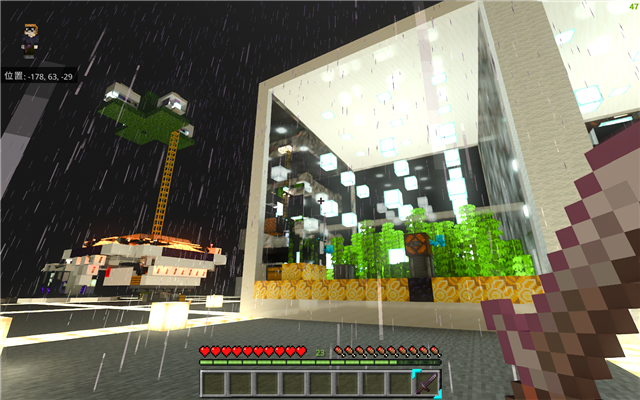
Hi there, it’s unyora playing Minecraft BE (Bedrock Edition) on a low-spec PC.
Although I’d like to buy a gaming PC and play on it eventually, I’m making the most of what I have right now since I don’t have the means to get a new one.
That said, there are essential settings (or environment) for Minecraft BE that I need, and one of them is installing the 32-bit version.
Since I couldn’t find any straightforward websites that explain how to do it, I’ll provide the steps here.
Although there were some videos available, I want to make sure you follow the correct instructions, or you might lose your data!
Here are the steps for installing the 32-bit version of Minecraft, which may vary depending on your situation:
- For those who are new to playing Minecraft or are playing a version other than the latest:
- How to check if you’re using the latest version:
- For those who are playing the latest version of Minecraft:
- How to save the data for your current world and resource packs:
- How to Install Minecraft Bedrock Edition (32-bit) on PC
For those who are new to playing Minecraft or are playing a version other than the latest:
If you’re just starting to play Minecraft or haven’t updated to the latest version yet, you can simply follow the steps below to install the 32-bit version. Or, if you’re already playing Minecraft and want to install (or update to) the 32-bit version, you can do so by following the steps below. You can easily check whether you’re using the latest version by going to the Microsoft Store and looking for any available updates.
How to check if you’re using the latest version:
Go to the Microsoft Store
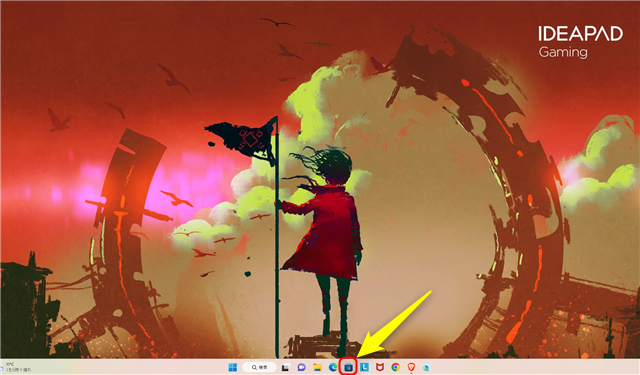
Select “Library” in the Microsoft Store
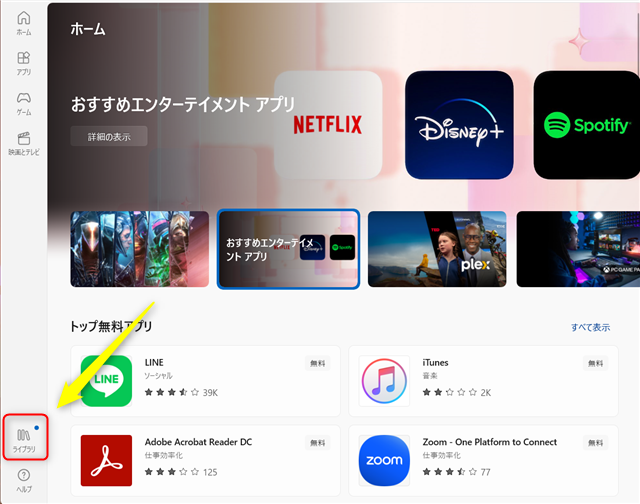
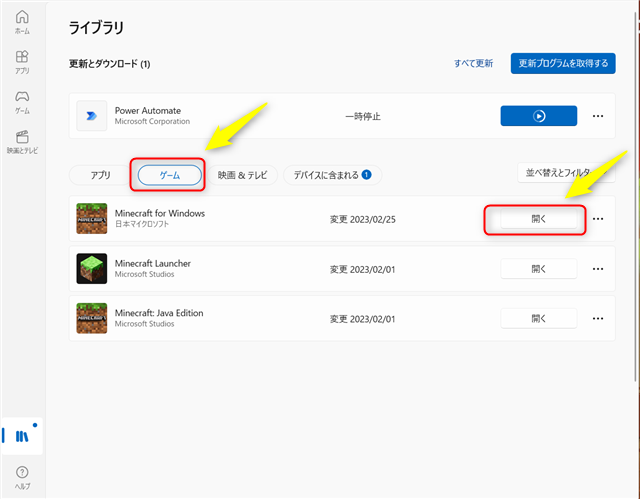
Choose the “Games” tab and check if there are any updates available for Minecraft
Alternatively, you can go to the Microsoft Store, select the “Games” tab, and check if there are any updates available for Minecraft
If the image is similar to the one below, you already have the latest version installed.
For those who are playing the latest version of Minecraft:
If you’re already playing the latest version of Minecraft, you need to follow a different process. Here’s a brief overview of the steps you’ll need to take:
How to save the data for your current world and resource packs:
This is a must-do step for anyone playing the latest version of Minecraft.
It’s also helpful for those who are not playing the latest version.
Here’s how to save the data for your world and resource packs while playing Minecraft:
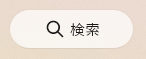
Click on the “Search” icon (the one with the magnifying glass).
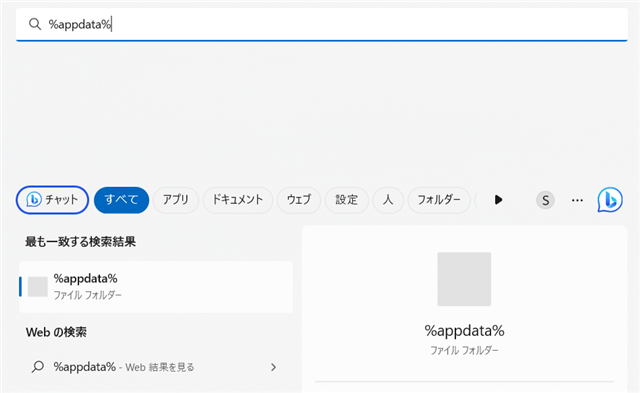
Type “%appdata%” (without the quotes) in the search box and hit enter. You can also copy and paste this.

Select the folder that appears.
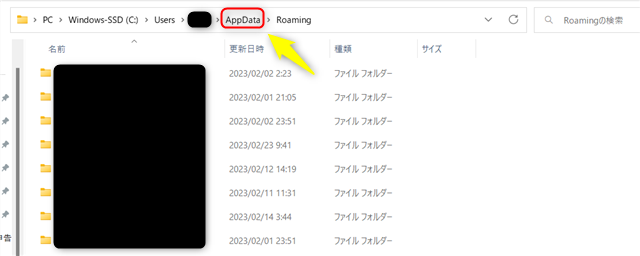
Select the folder one level above the current one, named “AppData”.
Select the “local” folder.
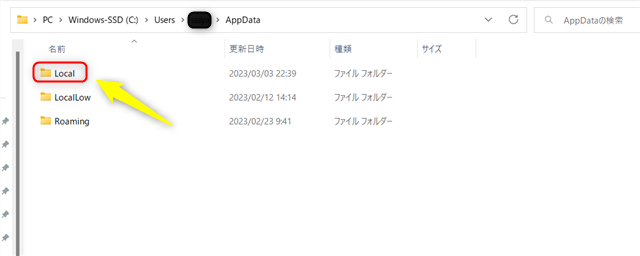
Select the “Packages” folder.
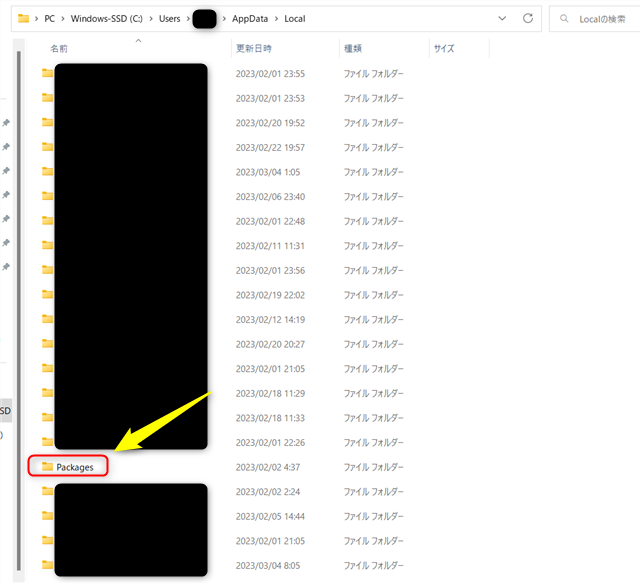
Select the “Microsoft.MinecraftUWP_8wekyb3d8bbwe” folder.
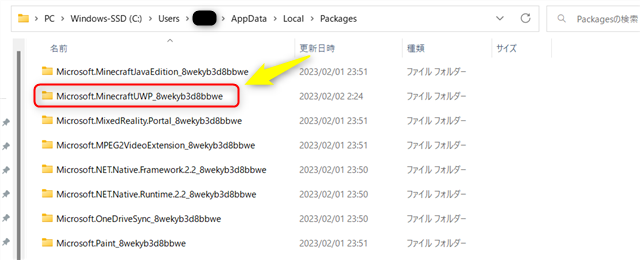
Note: It might be hard to find, so take your time!
Select the “LocalState” folder.
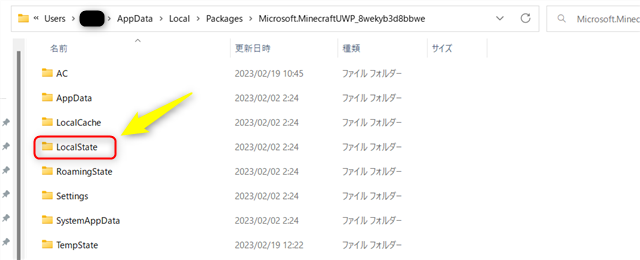
Select the “games” folder.
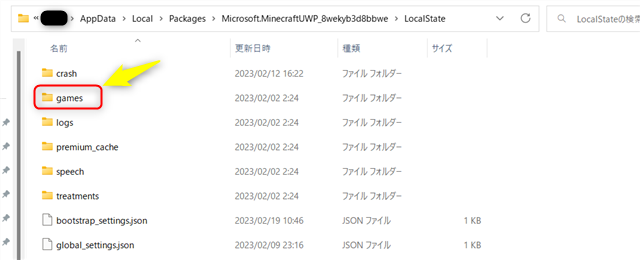
Select the “com.mojang” folder.
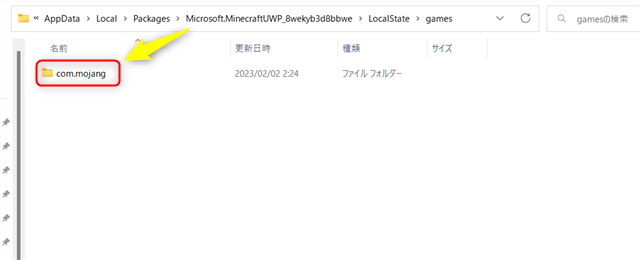
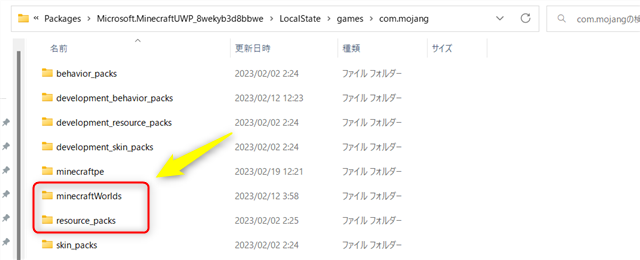
Your world and resource packs are located inside this folder.
That’s it for the steps for installing the 32-bit version of Minecraft and saving your data.
If you have saved the above data, uninstall Minecraft once.
Good luck!
How to Install Minecraft Bedrock Edition (32-bit) on PC
Now that you have securely saved your data, let’s proceed with the 32-bit installation. First, access the following website:

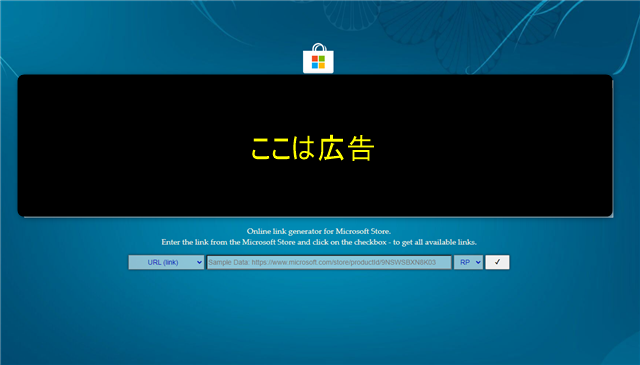
On the displayed site, enter the following and click the checkmark:
After that, click on the “x86” and “.appx” files in the list that appears to start downloading.
Note that some browsers may not be able to download it, so if you are having trouble, try using “edge”.
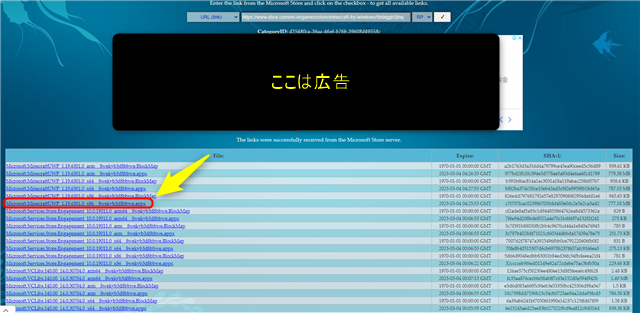
It may be hard to see, but the file you need to download is “Microsoft.MinecraftUWP_1.19.6301.0_x86__8wekyb3d8bbwe.appx”.
The version number may change if there’s an update.
The file is quite large, so it may take some time to download depending on your internet speed.
Once the download is complete, double-click the file to start the installation or update process.
minecraftWorlds
resource_packs
Congratulations! You’re now ready to play Minecraft Bedrock Edition in 32-bit. Here are a few things to keep in mind: